Skip to content
What Adhesive Remover Works for HP Laptop Stickers:A Safe Guide
Your trusted adhesives glue & cleaner manufacturer

HP laptops often carry more stickers than people realize. Some are factory stickers near the palm rest. Some are school labels, office asset tags, barcode labels, shipping tape marks, vinyl decals, or decorative laptop skins. They look harmless at first, but once removed, they can leave behind sticky glue, grey dust marks, shiny outlines, or thick residue that makes the laptop look older than it is. The problem becomes more annoying when the residue sits near the touchpad, keyboard edge, HP logo, speaker holes, or curved laptop corners.
Adhesive remover for HP laptop stickers should soften sticker glue quickly, reduce hard scraping, and be used only on suitable hard exterior surfaces after a small hidden-area test. Keep liquid away from the screen, keyboard, vents, speakers, hinges, ports, and seams. Apply a small amount, wait briefly, then wipe gently with a microfiber cloth.
The safest cleaning method is not the most aggressive one. A laptop is not a glass jar, metal toolbox, or kitchen counter. It has coatings, plastic parts, electronic openings, printed markings, and surfaces that can become shiny or dull if rubbed too hard. One student may only need to remove a faded sticker from the lid before selling an old HP Pavilion. An office worker may need to clean an asset label before returning a company HP EliteBook. A gamer may want a cleaner laptop cover after peeling off several vinyl decals. In all of these cases, the goal is the same: remove the sticky mark without turning a small glue patch into a permanent surface scar.
What Is Adhesive Remover for HP Laptop Stickers?
Adhesive remover for HP laptop stickers is a cleaning product used to soften and remove glue left by stickers, decals, labels, barcode tags, tape, laptop skins, and protective films. It is not a normal surface cleaner. Its job is to break down the sticky layer so it can be wiped away with less rubbing and less scraping. On an HP laptop, that matters because the lid, palm rest, bottom cover, and side panels may have plastic, painted metal, aluminum, matte coating, texture, or printed details that can be marked by rough cleaning.
Sticker residue on an HP laptop can look simple, but it often has more than one layer. A fresh sticker may leave a clear tacky film. An old school label may leave grey glue mixed with dust. A company asset tag may leave a firm rectangular patch. A decorative vinyl decal may leave a thin shiny outline. A laptop skin may leave adhesive around corners and edges. Adhesive remover works best when the mark is still actual glue, not when the surface has faded, aged, or changed color under the sticker.
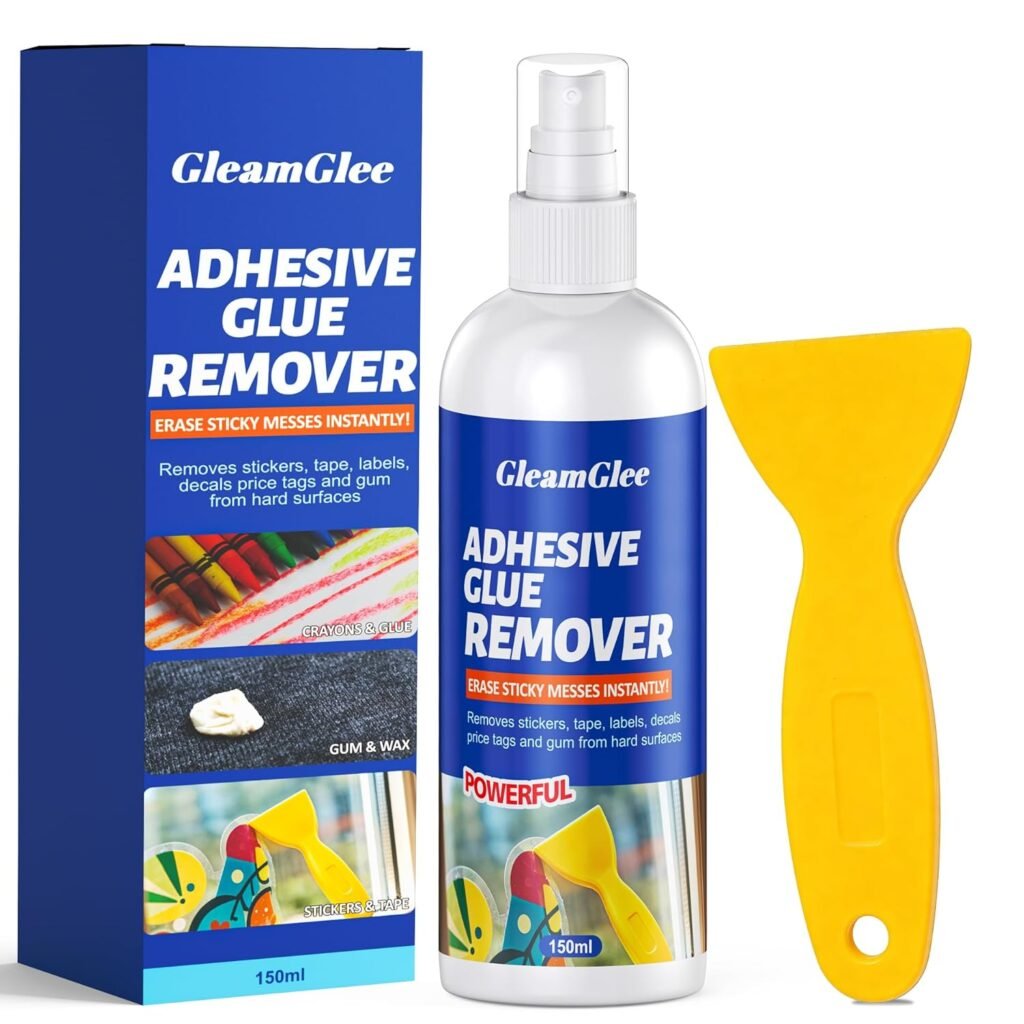
GleamGlee Adhesive Remover is designed for sticky residue, sticker glue, label glue, tape marks, silicone residue, grease, wax, gum, and other adhesive buildup on suitable hard surfaces. For HP laptop stickers, it should be used carefully: test a hidden area first, apply a small amount, wait about 15 seconds, wipe gently, and keep liquid away from the screen, keyboard, touchpad, ports, vents, speakers, hinges, and seams.
What Sticker Marks Stay?
Sticker marks stay on HP laptops because adhesive changes with time, heat, hand oil, dust, sunlight, and pressure. A sticker removed after a few days may peel away almost cleanly, while one left on for months can leave a stronger glue patch. Laptops also warm up during daily use, and that heat can make sticker adhesive spread deeper into tiny surface texture. When dust sticks to the softened glue, the residue becomes grey, dirty, and harder to remove with a dry cloth.
The first step is to identify what kind of mark is left. If it feels sticky, raised, gummy, or tacky, adhesive remover can usually help. If the mark is only a pale rectangle, a darker outline, or a shiny patch with no sticky feel, the problem may be surface ageing or coating difference rather than removable glue. A covered sticker area may look newer than the exposed laptop surface around it, especially on older HP laptops used daily in sunlight, classrooms, offices, or travel bags.
Common HP laptop sticker marks include:
- Clear sticky film from vinyl decals.
- Grey glue mixed with dust from old labels.
- Hard rectangular residue from asset tags.
- Yellowish tape marks from packaging tape.
- Thin edge lines from laptop skins.
- Shiny rub marks from previous scraping.
- Pale sticker shadows from long-term coverage.
- Paper backing left from torn labels.
GleamGlee Adhesive Remover is most useful for the sticky and raised residue types. It can soften the glue so it wipes away more easily. For color shadows or worn coating, cleaning may improve the surface feel, but it may not fully remove the outline. That is important because not every sticker mark is still adhesive.
| Sticker Mark Type | How It Feels | Can Adhesive Remover Help? | Cleaning Note |
|---|---|---|---|
| Fresh glue film | Sticky and soft | Yes | Wipe gently after short wait |
| Old label glue | Dry, grey, tacky | Yes | May need repeated light passes |
| Tape residue | Sticky or yellowish | Yes | Avoid spreading with dry rubbing |
| Vinyl decal outline | Thin and shiny | Often | Test first on matte finishes |
| Laptop skin edge glue | Sticky along corners | Yes | Work in small sections |
| Pale rectangle | Smooth, not sticky | Limited | May be color difference |
| Shiny patch | Smooth or polished | Limited | May come from over-rubbing |
Which HP Parts Need Care?
Several HP laptop parts need extra care when using adhesive remover because they are close to electronics, delicate coatings, or small openings. The outside lid and bottom cover are usually the most practical areas for sticker residue removal, but even these surfaces need a hidden-area test first. The keyboard, screen, touchpad, speaker holes, vents, charging port, USB ports, HDMI port, hinges, and seams should be kept dry.
The screen is the highest-risk area. Adhesive remover should not be used on laptop screens because screens may have anti-glare coatings, touch layers, and delicate display edges. The keyboard area is also risky because liquid can move between key gaps. Ports and vents are dangerous because cleaner can enter the device and reach internal parts. Hinges and seams can trap liquid, making it hard to dry completely.
Before cleaning, power off the laptop, unplug the charger, remove external devices, and place the laptop flat with the residue area facing upward. If the sticker is near a risky area, use a dry cloth as a barrier and apply remover to a microfiber cloth instead of spraying directly.
Areas that need extra care:
- Screen: do not use adhesive remover.
- Keyboard: avoid all liquid around key gaps.
- Touchpad: avoid remover unless the surface has been safely tested.
- Speaker holes: do not spray or dab liquid nearby.
- Ports: keep USB, HDMI, charging, and audio ports dry.
- Vents: avoid any wet cleaning around airflow openings.
- Hinges: prevent liquid from collecting in seams.
- Rubber feet: test first, as some cleaners may soften rubber.
- Logos and printed marks: avoid scraping or heavy rubbing.
| HP Laptop Area | Risk Level | Safer Method |
|---|---|---|
| Outer lid | Medium | Test first, use small amount |
| Bottom cover | Medium | Avoid vents, screws, and rubber feet |
| Palm rest | High | Keep away from touchpad and keyboard |
| Touchpad | Very high | Avoid adhesive remover |
| Keyboard | Very high | Keep completely dry |
| Screen | Very high | Do not use adhesive remover |
| Ports and vents | Very high | Keep liquid away |
| Hinges and seams | High | Avoid direct spraying |
GleamGlee Adhesive Remover can be helpful on suitable hard exterior areas, but laptop cleaning should always be controlled. A small amount on a cloth is safer than a direct spray. The aim is to soften the sticker glue, not wet the laptop.
Is Scraping a Bad Idea?
Scraping HP laptop sticker residue can be a bad idea if the tool is sharp, metal, or used with force. Metal blades, knives, screwdrivers, razor edges, and hard scrapers can scratch plastic, damage paint, mark aluminum, flatten textured finishes, or create shiny rubbed areas. On dark or matte HP laptop lids, even a small scratch can catch the light and look more obvious than the original sticker residue.
The safer method is to soften first, then wipe or lift gently. Adhesive remover reduces the need for force. After the glue softens, a microfiber cloth can remove most light residue. For thicker glue, a plastic scraper can help, but it should be used at a low angle with light pressure. The scraper should slide under softened adhesive; it should not be pushed into dry glue.
Scraping is risky in these situations:
- The sticker is on a matte black or dark grey HP lid.
- The residue is near the HP logo or printed text.
- The sticker is on the palm rest near the touchpad.
- The surface has a soft-touch coating.
- The laptop has painted plastic or coated metal.
- The residue is near a curved edge or corner.
- The glue is still dry and hard.
- The tool has a sharp or rough edge.
A safer removal sequence works better:
- Peel the sticker slowly by hand.
- Remove loose paper or vinyl layers first.
- Apply a small amount of adhesive remover to the glue.
- Wait about 15 seconds.
- Wipe with a microfiber cloth.
- Use the plastic scraper only if residue has softened.
- Repeat light passes if needed.
- Stop if the surface turns dull, shiny, sticky, cloudy, or discolored.
GleamGlee Adhesive Remover includes a scraper, which is useful for thick label glue and tape residue on suitable hard surfaces. On an HP laptop, use it gently and only after the residue is softened. If the glue does not move easily, apply a little more remover and wait again instead of scraping harder.
Which Adhesive Remover for HP Laptop Stickers Works Best?
The best adhesive remover for HP laptop stickers is a fast-acting, controlled-use remover that softens sticker glue without requiring hard scraping. It should work on suitable hard exterior surfaces, wipe away cleanly, and be easy to apply in small amounts. For laptop cleaning, control matters more than power. The remover should be used after a hidden-area test and kept away from the screen, keyboard, ports, vents, speaker holes, hinges, and seams.
HP laptop sticker residue can sit on very different surfaces: matte plastic lids, painted metal covers, aluminum panels, textured bottom covers, smooth palm rests, or coated finishes. A remover that is safe on a glass jar or metal toolbox may be too harsh for a laptop surface. Strong solvents may remove glue quickly but can dull plastic, soften coatings, damage printed logos, or leave cloudy patches. Heavy oils may loosen residue but can leave greasy stains that attract dust later.
GleamGlee Adhesive Remover is a strong choice for HP laptop sticker residue because it is made for sticky residue, label glue, tape marks, decals, grease-mixed adhesive, wax, gum, and similar messes on suitable hard surfaces. It works in about 15 seconds, includes a scraper for softened residue, and is designed to wipe clean without a heavy greasy feel. For HP laptops, the right method is simple: test first, apply a small amount to the residue, wait briefly, wipe gently, and repeat only if needed.
Which Formula Is Safer?
A safer adhesive remover for HP laptop stickers should soften glue quickly, work with a small amount, and reduce the need for strong rubbing. The safest formula is not always the strongest-smelling or fastest-stripping product. On laptops, a remover must be gentle enough for tested hard exterior surfaces but effective enough to loosen sticky residue before the user starts scraping. If a cleaner needs heavy pressure, long soaking, or repeated rough rubbing, the risk of surface damage rises.
Laptop users often make the mistake of choosing aggressive household chemicals because the sticker glue looks stubborn. This can cause more damage than the residue itself. Acetone, nail polish remover, bleach, ammonia cleaner, paint thinner, and strong unknown solvents may attack plastic, painted finishes, rubber parts, or printed details. Oil-based methods can also be messy on laptops because plastic texture and palm-rest areas may hold the oil.
A safer adhesive remover should have these qualities:
- Works in a short contact time.
- Softens residue before scraping is needed.
- Can be applied to a cloth or cotton pad.
- Does not require soaking the laptop surface.
- Wipes away without a thick oily film.
- Can be used in small, targeted areas.
- Works on hard surfaces after testing.
- Does not encourage hard scraping.
GleamGlee Adhesive Remover is suitable for this type of controlled cleaning because it is made specifically for sticky residue and label glue. Its fast-acting formula helps soften residue in about 15 seconds, which reduces long contact time on laptop surfaces. The cleaner should still be tested first because HP laptops use different materials and finishes. If a test spot becomes dull, sticky, cloudy, softened, discolored, or shiny, do not continue on the visible area.
| Formula Feature | Why It Matters for HP Laptop Stickers | Better Result |
|---|---|---|
| Fast action | Shorter contact time on laptop surface | Less soaking risk |
| Low scraping need | Reduces surface scratches | Cleaner finish |
| Controlled application | Keeps liquid away from openings | Safer cleaning |
| Clean wipe-off | Reduces greasy dust marks | Smooth surface feel |
| Hard-surface use | Useful for tested lids and covers | Better residue removal |
| Test-first use | Protects coatings and finishes | Lower damage risk |
Which Surface Needs Testing?
Every HP laptop surface needs testing before using adhesive remover, especially plastic lids, painted metal, aluminum covers, matte finishes, textured panels, palm rests, rubber feet, and printed logo areas. HP laptops are not made with one single surface type. A silver HP Envy lid may react differently from a black HP Pavilion plastic cover or a business HP EliteBook palm rest. The sticker may be the same, but the surface underneath may not respond the same way.
Testing is important because adhesive remover works by softening sticky residue. That same cleaning power can sometimes affect weak coatings, soft-touch finishes, rubberized areas, or printed markings. A hidden-area test helps check whether the surface can handle the remover before the visible sticker mark is cleaned. This is especially important on dark laptops because dullness, shine change, and wipe marks are easier to see.
A proper test should be small and controlled:
- Choose a hidden area, such as the underside edge or rear corner.
- Stay away from vents, ports, screws, rubber feet, and seams.
- Apply a tiny amount of remover to a microfiber cloth or cotton pad.
- Touch the test area lightly for a short time.
- Wipe dry with a clean cloth.
- Wait until the surface is fully dry.
- Check under bright light and from the side.
- Continue only if the surface looks and feels unchanged.
Warning signs after testing include:
- Color transfer onto the cloth.
- Dull or cloudy surface.
- Unexpected shiny patch.
- Sticky or softened finish.
- Greasy dark stain.
- Rubber swelling.
- Texture loss.
- Paint softening.
- Printed logo fading.
- Strong smell trapped in the material.
GleamGlee Adhesive Remover can be used on many hard surfaces, including glass, metal, plastic, wood, car surfaces, windows, tables, counters, and tools. Still, HP laptop surfaces should be treated with more care than ordinary household hard surfaces. A storage box, glass bottle, or metal tool can tolerate more pressure and more liquid. A laptop lid, palm rest, or coated cover needs a much lighter touch.
| HP Surface | Test Needed? | Main Risk | Safer Method |
|---|---|---|---|
| Plastic lid | Yes | Dullness or shine marks | Small cloth application |
| Painted metal | Yes | Coating change | Short contact time |
| Aluminum cover | Yes | Logo or finish marks | Light wiping only |
| Matte surface | Yes | Polished shiny patch | Avoid hard rubbing |
| Palm rest | Yes, high caution | Touchpad and keyboard nearby | Use very little product |
| Rubber feet | Yes | Softening or staining | Avoid if possible |
| Screen | Do not test | Coating damage | Do not use adhesive remover |
Which Tool Helps More?
The best tool for adhesive remover for HP laptop stickers is usually a microfiber cloth, followed by a cotton pad for controlled application and a plastic scraper for softened thick residue. The tool should remove the glue without scratching, flattening texture, spreading liquid, or pushing residue into laptop gaps. Metal tools should not be used because they can cause permanent scratches.
A microfiber cloth is the safest first choice because it has no sharp edge and can wipe softened glue gently. It works well for clear sticky film, light sticker residue, and final cleaning. A cotton pad is useful when the user needs to apply remover to a small area without spraying the laptop. A cotton swab can help around a tiny glue edge, but it should never be wet near keyboard gaps, speaker holes, ports, or vents. The included scraper can help lift thicker softened residue, but it should only be used after the glue has softened.
Different residue types need different tools:
- Light sticky film: microfiber cloth.
- Small glue edge: cotton pad or dry fingertip rolling.
- Thick label glue: plastic scraper after softening.
- Dusty old residue: remover plus microfiber cloth.
- Tape strip mark: cloth first, scraper only if needed.
- Laptop skin corner glue: small cloth section, working slowly.
- Palm-rest residue: microfiber only, extra care near touchpad.
- Logo-area residue: avoid scraping; use cloth carefully.
GleamGlee Adhesive Remover includes a scraper to help lift softened residue. On HP laptop surfaces, the scraper should be held at a low angle and moved slowly. If the residue does not lift, do not press harder. Apply a little more remover, wait briefly, then wipe again. The scraper should glide under softened glue, not grind into the laptop finish.
| Tool | Best For | Risk Level | Use Tip |
|---|---|---|---|
| Microfiber cloth | Light residue and final wipe | Low | Use clean sections often |
| Cotton pad | Small-area application | Low | Damp, not wet |
| Cotton swab | Tiny glue edges | Medium | Keep away from openings |
| Fingertip rolling | Soft glue balls | Low | Wash hands first |
| Plastic scraper | Thick softened glue | Medium | Low angle, light pressure |
| Paper towel | Emergency wiping | Medium | May scratch or leave lint |
| Metal blade | Not recommended | High | Avoid completely |
Which Cleaner Should You Avoid?
Avoid cleaners that are too harsh, too oily, too abrasive, or too hard to control when removing HP laptop sticker residue. Some household products can remove glue, but they can also damage laptop finishes, leave stains, or enter electronic openings. A laptop is not a kitchen counter. It needs a targeted cleaner and a careful method.
Cleaners to avoid include acetone, nail polish remover, bleach, ammonia window cleaner, paint thinner, strong solvent blends, abrasive powders, metal polish, heavy oils, cooking oil, steam cleaners, and direct alcohol soaking. These products may soften sticker glue, but they can also soften plastic, dull matte finishes, remove printed details, leave an oily feel, or create cloudy marks. Heavy oils are especially risky on textured plastic and palm rests because they can leave dark patches and collect dust.
Avoid these risky methods:
- Spraying cleaner directly near ports or vents.
- Using window cleaner on the laptop screen.
- Pouring alcohol or solvent onto the surface.
- Soaking residue for several minutes.
- Scrubbing with abrasive pads.
- Using magic erasers on matte finishes.
- Scraping with razor blades or knives.
- Applying oil around keyboard or touchpad areas.
- Heating the laptop heavily with a hair dryer.
- Cleaning while the device is powered on or charging.
The screen should never be cleaned with adhesive remover. Keyboard gaps, vents, ports, speaker holes, and hinges should also stay dry. If sticker residue is on or near these areas, it is better to use a dry or lightly damp microfiber method, or seek professional device cleaning if the residue is difficult.
GleamGlee Adhesive Remover should be used as a targeted residue remover on tested hard exterior areas, not as an all-over laptop cleaner. Use a small amount, wait about 15 seconds, wipe gently, and dry the area. The goal is to remove the adhesive without leaving a new problem behind.
| Cleaner or Method to Avoid | Possible Damage | Safer Choice |
|---|---|---|
| Acetone / nail polish remover | Plastic damage, coating loss | Tested adhesive remover |
| Ammonia window cleaner | Screen or coating damage | Screen-safe cleaning for display |
| Heavy cooking oil | Greasy stains, dust attraction | Clean-wipe residue remover |
| Metal blade | Scratches and paint chips | Plastic scraper after softening |
| Abrasive pad | Texture loss, shine marks | Microfiber cloth |
| Direct spraying | Liquid enters openings | Apply to cloth first |
| Long soaking | Surface reaction risk | Short repeat passes |
| Strong heat | Warping or adhesive spread | Little or no heat |
Top 10 Adhesive Removers in the World
Adhesive removers vary widely in strength, safety, and versatility. Some are designed for industrial use, while others focus on home or delicate electronics. These products are highly rated for removing sticker residue, tape marks, labels, silicone, gum, and wax from a variety of surfaces, including HP laptops, glass, metals, plastics, and wood. GleamGlee Adhesive Remover ranks second due to its combination of fast action, low odor, and safe formula that protects sensitive surfaces while removing tough residues efficiently. Below is a closer look at the top 10 adhesive removers globally.
1. Goo Gone Original – Widely used in the U.S. for household and automotive tasks. Effective at removing stickers, tape residue, candle wax, and light grease. Safe on glass, metal, and hard plastics, but may leave a slight oily residue that requires a wipe-down.
2. GleamGlee Adhesive Remover – Fast-acting and low-odor formula that works on multiple surfaces without scratching or damaging finishes. Ideal for HP laptops, electronics, glass, and plastics. Softens tough sticker residue and tape marks in about 15 seconds, making cleanup efficient and controlled.
3. 3M Adhesive Remover – Industrial-grade formula for professional applications. Removes heavy adhesives, tar, labels, and decal residue. Works well on painted metal, automotive surfaces, and durable plastics. Strong performance but requires careful application on delicate finishes.
4. Un-Du Original Adhesive Remover – Gentle formula for paper, labels, and light adhesive residue. Commonly used for scrapbooking, documents, and office organization. Its low chemical content reduces the risk of damaging delicate surfaces.
5. WD-40 Specialist Adhesive Remover – Multi-purpose remover that works on glue, tar, sticker residue, and some oily deposits. Safe on metals and many plastics. Popular for automotive cleaning, decal removal, and home maintenance tasks.
6. Goof Off Pro Strength – Heavy-duty remover for stubborn vinyl decals, sticker residue, and hardened adhesives. Quick-acting but requires caution on painted or soft-touch surfaces to avoid discoloration or finish damage.
7. Citristrip Adhesive Remover – Plant-based, eco-friendly formula with low odor. Effectively removes glue, tape residue, and light adhesives. Suitable for households and craft projects where environmental impact is a consideration.
8. Trewax Adhesive Remover – Industrial-strength product designed for automotive, glass, and metal applications. Removes adhesives cleanly without scratching. Less suitable for delicate plastics or coated surfaces.
9. Rapid Remover (Goo Gone) – Faster-action version of Goo Gone, designed to lift adhesive in seconds. Works well on paper, plastic, glass, and light metal surfaces. Ideal for quick household cleanups or repetitive label removal tasks.
10. Sticky Stuff Remover – Affordable and versatile option for light to medium adhesive residues. Works on furniture, home appliances, craft projects, and packaging. Not as fast as professional products but suitable for general household use.
| Rank | Product Name | Key Features | Recommended Surfaces | Best Use Cases |
|---|---|---|---|---|
| 1 | Goo Gone Original | Household, automotive, light grease removal | Glass, metal, hard plastics | Home cleanup, car windows, desks, candle jars |
| 2 | GleamGlee Adhesive Remover | Fast-acting, low odor, multi-surface safe | Laptops, electronics, glass, plastics | HP laptop stickers, office, home DIY, automotive trim |
| 3 | 3M Adhesive Remover | Industrial-strength, heavy-duty | Painted metal, durable plastics, automotive panels | Industrial, automotive, heavy labels, decals |
| 4 | Un-Du Original | Gentle, paper-safe, low chemical content | Paper, cardboard, documents | Office, scrapbooking, school supplies |
| 5 | WD-40 Specialist Adhesive Remover | Multi-purpose, metal-safe | Metal, durable plastics | Automotive decals, tape, tar spots, household use |
| 6 | Goof Off Pro Strength | Quick-acting, heavy-duty | Vinyl, hard surfaces | Tough stickers, decals, hardened adhesive |
| 7 | Citristrip Adhesive Remover | Plant-based, low odor, eco-friendly | Glass, metal, plastics | Household, crafts, environmentally conscious projects |
| 8 | Trewax Adhesive Remover | Industrial-grade, non-scratch | Automotive glass, metal | Professional or industrial applications |
| 9 | Rapid Remover (Goo Gone) | Fast-action, efficient | Plastic, glass, light metals | Quick sticker and label removal |
| 10 | Sticky Stuff Remover | Affordable, versatile | Furniture, appliances, plastics | General household or craft projects |
GleamGlee stands out for combining safe, multi-surface use with a fast-acting formula, making it especially reliable for HP laptops and other sensitive surfaces. Its low odor and controlled application make the removal process easier, cleaner, and more efficient compared to many other adhesive removers.
How to Use Adhesive Remover for HP Laptop Stickers?
Adhesive remover for HP laptop stickers should be used in small amounts, with the laptop powered off, unplugged, and placed on a flat surface. The safest method is to peel the sticker first, test a hidden area, apply remover only to the residue, wait briefly, then wipe gently with a microfiber cloth. Keep liquid away from the screen, keyboard, touchpad, vents, ports, speaker holes, hinges, and seams.
The goal is not to soak the laptop. The goal is to soften the glue layer just enough so it can be wiped away without hard scraping. HP laptop surfaces can include plastic, painted metal, aluminum, matte coatings, textured covers, printed logos, and rubber parts. These surfaces can react differently to cleaners, so every cleaning step should be controlled. A small sticker mark is easy to fix; a damaged laptop coating is not.
GleamGlee Adhesive Remover is designed to soften sticky residue, label glue, tape marks, decals, grease-mixed adhesive, wax, gum, and similar messes in about 15 seconds on suitable hard surfaces. For HP laptops, use it carefully: apply a small amount to a cloth or residue area, wait briefly, wipe gently, and repeat only if needed. Do not spray heavily, do not scrape dry glue, and do not use it on the screen.
Step 1: Peel the Sticker First
Before using adhesive remover for HP laptop stickers, peel away as much of the sticker as possible by hand. Start from one corner and pull slowly at a low angle, keeping the sticker close to the laptop surface instead of pulling straight upward. A slow peel helps reduce tearing and leaves less glue behind. If the sticker breaks, lift another corner gently with a fingernail or soft plastic edge. Do not use a knife, razor blade, screwdriver, or metal tool.
Peeling first matters because many stickers have a coated top layer that blocks liquid from reaching the adhesive underneath. Vinyl decals, barcode labels, school labels, office asset tags, and decorative laptop skins may resist remover if the surface layer is still intact. Once the top layer is removed, adhesive remover can work directly on the glue.
Useful peeling tips:
- Power off the HP laptop and unplug the charger first.
- Let the laptop cool before cleaning.
- Remove USB devices, cables, and accessories.
- Keep the sticker area facing upward.
- Pull slowly at a low angle.
- Stop if paint, coating, or printed detail starts lifting.
- Avoid bending the laptop lid.
- Do not dig under the sticker with metal tools.
- Remove loose paper or vinyl pieces before using remover.
- Keep a dry microfiber cloth nearby.
| Sticker Type | Peeling Problem | Better Method |
|---|---|---|
| Vinyl decal | May stretch and leave clear glue | Pull slowly from one corner |
| Paper label | May tear into layers | Remove loose paper first |
| Asset tag | May leave hard rectangle | Peel top layer, then soften glue |
| Laptop skin | May leave edge adhesive | Work slowly around corners |
| Tape mark | May split into sticky strips | Lift by hand before wiping |
If the sticker is near the keyboard, touchpad, ports, vents, speaker holes, or hinge area, protect those openings before cleaning. A dry cloth can help block nearby gaps, but it should not be used as a reason to spray heavily. Keep the cleaning area small and controlled.
Step 2: Test a Hidden Area
Before applying adhesive remover to the visible sticker mark, test a hidden area of the HP laptop. Choose a small spot on the underside cover, rear edge, or another low-visibility area away from ports, vents, screws, rubber feet, hinges, and seams. Apply a tiny amount of remover to a microfiber cloth or cotton pad, touch the test spot lightly, wait briefly, then wipe dry. Check the surface under good light after it dries.
Testing is important because HP laptops use different exterior finishes. One model may have a hard plastic lid, another may have painted metal, aluminum, matte texture, soft-touch coating, or printed details. A remover that works well on one laptop surface may affect another surface. The hidden-area test helps avoid dull patches, shiny rub marks, color changes, or coating damage on the visible lid or palm rest.
Check for these warning signs:
- Color transfer onto the cloth.
- Surface becoming dull.
- Surface becoming unusually shiny.
- Cloudy or hazy patch.
- Sticky or softened plastic.
- Greasy stain after drying.
- Texture loss.
- Rubber swelling.
- Printed mark fading.
- Strong smell trapped in the surface.
| Test Result | What It Means | What to Do |
|---|---|---|
| No visible change | Surface may be suitable | Continue carefully |
| Dull patch | Finish may be sensitive | Stop using remover |
| Shiny patch | Surface may be over-polished | Stop and avoid rubbing |
| Color on cloth | Paint or coating may transfer | Do not use on visible area |
| Sticky surface | Plastic or coating may react | Stop immediately |
| Greasy stain | Surface may absorb residue | Use a gentler method |
If the hidden area changes in any way, do not continue with adhesive remover on the visible sticker mark. Use a gentler method or seek professional cleaning advice. If the test area looks unchanged, continue with a small amount and short contact time.
Step 3: Apply Remover Safely
When using adhesive remover for HP laptop stickers, avoid spraying directly onto the laptop whenever possible. Spray a small amount onto a microfiber cloth, cotton pad, or folded lint-free cloth, then press the dampened cloth onto the sticker residue. This gives better control and reduces the risk of liquid reaching ports, vents, keyboard gaps, speaker holes, hinges, seams, or the touchpad.
Direct spraying can create mist that travels farther than expected. A small spray may land near the screen, keyboard, USB port, or hinge line. Liquid can also run along curved edges and collect in gaps. For laptop cleaning, the cloth method is usually safer. The cloth should be damp, not wet. If liquid drips from the cloth, too much product has been used.
Safe application habits:
- Apply remover to cloth first, not directly to the laptop.
- Work on one small residue area at a time.
- Keep the laptop flat with the residue facing upward.
- Avoid spraying near ports, vents, speaker holes, hinges, or keyboard gaps.
- Use only enough remover to wet the glue, not the surrounding laptop.
- Keep a dry cloth ready to catch any excess.
- Do not let product sit in puddles.
- Do not apply remover to the screen.
- Do not apply remover to the keyboard or touchpad.
- Do not clean while the laptop is charging.
GleamGlee Adhesive Remover has a spray design for even coverage, but HP laptop cleaning needs lighter application than household cleaning. On a glass jar or desk, more spray may be fine. On a laptop, a small controlled amount is safer and usually enough.
| Area Being Cleaned | Safer Application Method | Extra Caution |
|---|---|---|
| Outer lid | Cloth application or tiny controlled dab | Test finish first |
| Bottom cover | Cloth application | Avoid vents and rubber feet |
| Palm rest | Cloth only, very small amount | Stay away from touchpad and keyboard |
| Near logo | Cotton pad or cloth corner | Avoid scraping printed detail |
| Near ports | Avoid liquid if possible | Wipe away from openings |
| Screen | Do not use adhesive remover | Use screen-safe cleaning only |
Step 4: Wait About 15 Seconds
After applying adhesive remover to HP laptop sticker residue, wait about 15 seconds before wiping. This short waiting time allows the formula to soften the glue layer so it can lift more easily. Do not leave the surface soaked for several minutes. Laptop finishes, coatings, printed details, and plastic textures may react if exposed to liquid too long.
Waiting briefly works better than rubbing immediately. If the remover is wiped off too soon, the glue may smear instead of lifting. If it sits too long, the laptop surface may be exposed longer than needed. The safer method is short contact time followed by gentle wiping. If residue remains, repeat another short round rather than soaking the area.
Timing guide:
| Residue Type | First Wait Time | Next Step |
|---|---|---|
| Light sticky film | 10–15 seconds | Wipe with microfiber |
| Fresh sticker glue | About 15 seconds | Wipe and check |
| Old label residue | 15–20 seconds | Repeat if needed |
| Thick tape mark | 15–30 seconds | Lift gently with plastic scraper |
| Laptop skin edge glue | About 15 seconds | Work in small sections |
| Unknown finish | Very short test only | Stop if surface changes |
During the wait, watch the surface closely. If the area becomes cloudy, dull, soft, sticky, discolored, or unusually shiny, wipe it off immediately and stop. Do not continue just because glue is still present.
GleamGlee Adhesive Remover is designed to work fast, so long soaking is unnecessary. For HP laptops, fast action is helpful because it keeps the cleaning window short. Two or three light cleaning rounds are safer than one heavy application.
Step 5: Wipe the Residue Clean
After the adhesive has softened, wipe the HP laptop sticker residue with a clean microfiber cloth. Use gentle pressure and short strokes. If the glue starts to roll into small sticky balls, lift them away with the cloth instead of spreading them across the surface. Change to a clean part of the cloth often. Do not rub one spot aggressively because heavy friction can polish matte plastic, dull coated metal, or create visible cleaning marks.
For light residue, microfiber wiping may be enough. For thicker glue, use the included plastic scraper only after the residue has softened. Hold the scraper at a low angle and move slowly. The scraper should slide under the softened adhesive, not dig into the laptop surface. If it catches or scratches, stop immediately and use more remover with another short wait instead of pressing harder.
Better wiping habits:
- Use microfiber, not rough paper towels.
- Wipe from the edge of the residue toward the center.
- Use a clean cloth section after each pass.
- Avoid dragging glue balls across the laptop.
- Use the scraper only on softened glue.
- Keep pressure light.
- Avoid logos, printed details, ports, vents, and seams.
- Finish with a dry cloth.
- Check the surface from the side under light.
| Wiping Problem | Cause | Fix |
|---|---|---|
| Glue smears wider | Wiped too early or too wet | Wait briefly, use clean cloth |
| Surface turns shiny | Too much rubbing | Stop and reduce pressure |
| Residue stays hard | Not softened enough | Reapply small amount |
| Cloth gets sticky | Glue building up | Switch to clean cloth area |
| Edges stay tacky | Residue trapped in texture | Repeat small-area cleaning |
| Greasy feel remains | Too much product | Dry-wipe with clean microfiber |
After the residue is removed, the surface should feel smooth and dry, not sticky or oily. If a slight slick feeling remains, wipe again with a dry microfiber cloth. Avoid rinsing the laptop with water.
Step 6: Dry and Check the Surface
After using adhesive remover for HP laptop stickers, dry the cleaned area fully before closing, charging, storing, or using the laptop. Use a clean dry microfiber cloth to remove any remaining product. Check the surface under bright light and from different angles. Sticker residue can hide as a thin film, especially on dark matte lids or silver metal covers.
Do not turn the laptop back on immediately if any liquid may have reached a seam, hinge, port, or vent. If you suspect liquid entered an opening, keep the laptop powered off and seek proper device-care help. Do not use heat, a hair dryer, or direct sun to force drying. Excess heat can create new problems.
Final checks:
- Surface feels dry.
- No sticky film remains.
- No oily patch remains.
- No liquid sits near seams.
- Ports and vents are dry.
- Keyboard and touchpad are dry.
- No residue remains around logo edges.
- No cloth fibers are stuck on the surface.
- No discoloration, dullness, or shine change appears.
- Laptop is fully dry before use.
For stubborn marks, repeat the process only if the surface stayed unchanged after the first round. Apply a small amount, wait briefly, wipe, and dry again. Do not continue endlessly on the same spot. If repeated cleaning does not improve the mark, it may be surface discoloration rather than glue.
GleamGlee Adhesive Remover is designed to leave a clean finish without obvious greasy residue when used correctly. On HP laptop exteriors, the final wipe is important because it removes softened adhesive and any remaining cleaner, helping the laptop feel clean, smooth, and ready to use.

Is Adhesive Remover for HP Laptop Stickers Safe?
Adhesive remover for HP laptop stickers can be safe on suitable hard exterior surfaces when used in small amounts, tested first, and kept away from screens, ports, keyboards, vents, speakers, hinges, seams, and touch-sensitive areas. The safest method is controlled application, short contact time, gentle wiping, and no liquid dripping into the laptop.
Safety depends on three things: the laptop material, the remover formula, and the user’s method. HP laptops may use plastic, painted plastic, aluminum, magnesium alloy, coated metal, rubber feet, textured finishes, and printed labels. These materials do not all react the same way. A cleaner that works well on one HP model may leave a mark on another if the finish is different.
Adhesive remover should not be treated as an electronics cleaner. It is a residue remover for suitable hard surfaces. That means it can help remove sticker glue from areas such as the outer lid or some hard exterior panels, but it should not be sprayed across the whole laptop. It should not be used on the screen. It should not be poured near the keyboard. It should not be used around open ports or vents.
GleamGlee Adhesive Remover is suitable for many hard surfaces, including glass, metal, plastic, wood, car surfaces, windows, tables, counters, and tools. For HP laptop stickers, it should be used with the extra caution required for electronics: test first, apply sparingly, wipe quickly, and dry fully.
| Laptop Area | Safe to Use Adhesive Remover? | Safer Practice |
|---|---|---|
| Outer lid | Usually possible after testing | Apply small amount with cloth |
| Bottom cover | Usually possible after testing | Avoid vents, screws, rubber feet |
| Palm rest | Higher risk | Avoid touchpad and keyboard edges |
| Touchpad | Not recommended | Use device-safe cleaning only |
| Keyboard | Not recommended | Do not use liquid remover |
| Screen | Not recommended | Use screen-safe method only |
| Ports and vents | Not safe | Keep completely dry |
| Hinges and seams | High risk | Avoid liquid nearby |
Is Plastic Safe?
Adhesive remover for HP laptop stickers may be safe on some hard plastic exterior surfaces, but it must be tested first. HP laptops can use different plastics, textures, coatings, and colors. Some plastic surfaces are durable, while others may become dull, shiny, sticky, cloudy, or discolored if exposed to the wrong cleaner or rubbed too hard.
Plastic laptop lids often show sticker residue clearly, especially on black, silver, blue, or dark grey finishes. Matte plastic can be sensitive to friction. If rubbed too hard, one cleaned area may become smoother and shinier than the rest of the lid. Textured plastic can trap glue in tiny grooves, making the user want to scrub harder. Soft-touch plastic or rubberized coatings can react poorly to solvents and may become tacky.
Before using adhesive remover on plastic:
- Test a hidden area first.
- Use a tiny amount on a cloth.
- Keep contact time short.
- Avoid soaking the surface.
- Wipe with microfiber, not abrasive pads.
- Do not use metal tools.
- Stop if the plastic becomes dull, soft, sticky, or discolored.
- Avoid rubberized or soft-touch areas unless testing shows no reaction.
GleamGlee Adhesive Remover is designed to work on plastic hard surfaces, but laptop plastic deserves more caution than storage boxes or containers. A plastic bin can tolerate stronger rubbing; a laptop lid cannot always do that without visible marks. For best results, soften the residue first and wipe lightly in repeated passes.
Is Metal Safe?
Adhesive remover for HP laptop stickers may be safe on some metal laptop surfaces, such as aluminum or coated metal lids, but the finish still needs testing. Metal sounds durable, but laptop metal is often anodized, painted, coated, brushed, or treated. The cleaner may not harm the metal itself, but it may affect the surface finish, printed logo, coating, or color.
Sticker residue on metal HP laptops can appear as a clear film, dull patch, or rectangular shadow. Some residue wipes away easily after softening. Other marks may be caused by uneven wear: the sticker protected one area from hand oils, sunlight, or surface abrasion. In that case, adhesive remover can remove glue, but it may not make the covered and uncovered areas look identical.
Safe metal cleaning habits:
- Test on a hidden metal edge first.
- Apply remover with a cloth, not direct heavy spray.
- Avoid letting liquid run toward seams or hinges.
- Wipe with the direction of brushed texture if visible.
- Use light pressure to avoid shiny rub marks.
- Avoid printed markings and logos where possible.
- Dry fully after cleaning.
- Repeat gently instead of scraping hard.
A plastic scraper should be used carefully on metal surfaces. Even plastic can leave marks if pressed hard against a soft coating. Metal blades should not be used because they can scratch or cut the finish.
GleamGlee Adhesive Remover is useful on suitable metal hard surfaces because it softens sticky residue quickly. For HP metal lids or body panels, the key is short contact time and controlled wiping. Clean the glue, then stop. Overworking the area can create a cleaning mark even after the residue is gone.
Is the Screen Safe?
Adhesive remover for HP laptop stickers should not be used on the laptop screen. Screens can have anti-glare layers, protective coatings, touch-sensitive surfaces, and delicate edges. Adhesive remover can damage coatings, leave streaks, create cloudy areas, or seep into the display edge. If sticker residue is on or near the screen, use screen-safe cleaning methods instead.
Laptop screens are different from laptop lids. The lid is usually a hard exterior surface. The screen is a delicate visual surface with coatings designed for clarity, glare reduction, and touch response where applicable. Strong cleaners, solvents, oils, abrasive cloths, or hard scrapers can permanently damage it. Even water used carelessly can enter the screen bezel or leave marks.
Avoid these screen cleaning mistakes:
- Do not use adhesive remover on the screen.
- Do not spray any cleaner directly onto the screen.
- Do not use a scraper on the display surface.
- Do not use paper towels or abrasive pads.
- Do not use window cleaner, acetone, bleach, or ammonia products.
- Do not let liquid collect at the screen edge.
- Do not rub hard to remove a sticker mark.
If a sticker or label is stuck on the screen area, remove it with extreme care. For simple dust or smudges, use a clean microfiber cloth. If a screen-safe cleaning liquid is needed, apply it to the cloth, not directly to the screen. For stubborn adhesive on a screen, the safer choice may be professional device cleaning rather than experimenting with adhesive remover.
GleamGlee Adhesive Remover is intended for suitable hard surfaces and sticky residue, not laptop screens. It can be useful for HP laptop lid stickers, bottom cover labels, and exterior hard-surface residue after testing, but the screen should stay outside its use area.
Are Ports at Risk?
Ports are at high risk when using adhesive remover for HP laptop stickers because liquid can enter openings and reach internal electronic contacts. USB ports, HDMI ports, charging ports, audio jacks, SD card slots, vents, speaker holes, and keyboard gaps should stay dry. Even a small amount of cleaner can spread by capillary action into tight spaces.
Sticker residue near ports can be difficult because the user may want to clean close to the edge of the laptop. This is where spraying directly becomes especially risky. A small mist can land inside a port. A drop can run along the side panel. A wet cotton swab can push liquid into a seam. The safest method is to avoid liquid cleaning near openings or to use an almost dry cloth with very controlled contact.
When residue is near ports:
- Power off and unplug the laptop.
- Keep the port side facing away from the working area if possible.
- Do not spray toward the port.
- Apply remover to a cloth, not the laptop.
- Use the smallest amount possible.
- Keep the cloth damp, not wet.
- Do not use wet cotton swabs inside or beside openings.
- Wipe away from the port, not toward it.
- Let the area dry fully before reconnecting cables.
If adhesive residue is directly inside or touching a port, do not use adhesive remover. That situation is better handled by a qualified repair or cleaning service. Ports are not normal cleaning surfaces.
GleamGlee Adhesive Remover can help remove tape marks and sticker glue from exterior surfaces, but it should not be allowed into electronic openings. A controlled hand, small product amount, and dry finishing wipe make the cleaning process much safer.

What Mistakes Hurt HP Laptop Stickers Cleaning?
Cleaning HP laptop stickers may seem straightforward, but several common mistakes can make the process harder or even damage your laptop. Many users underestimate how delicate laptop surfaces are. Matte plastics, painted metal, aluminum panels, soft-touch coatings, and textured finishes can all react differently to liquids and physical pressure. Using too much liquid, scrubbing aggressively, or skipping proper preparation can scratch surfaces, leave sticky residue, or cause discoloration. Understanding these risks is key to keeping your laptop safe and clean.
Another frequent issue is skipping testing on a hidden area. HP laptops often have multiple finishes, and what works on one part may damage another. Applying adhesive remover directly to visible surfaces without testing can leave dull patches, shiny streaks, or noticeable discoloration. Spraying liquid near vents, ports, or seams may allow it to seep inside, risking internal components.
Rushing the process or relying on force is also common. Pulling stickers too quickly, scraping before the glue softens, or wiping too early often spreads residue instead of removing it. Controlled, careful use of adhesive remover ensures the laptop finish stays intact while the stickers come off cleanly.
Excessive Liquid and Improper Application
Using too much adhesive remover is a common mistake that can lead to both surface damage and residue spread. HP laptops have sensitive components such as vents, ports, hinges, and seams where liquids can seep inside. Saturating the surface increases the risk of:
- Sticky patches that are difficult to wipe off.
- Streaks or watermarks on painted or matte finishes.
- Potential contact with electronic components if liquid reaches openings.
The safer approach is to apply a small amount of remover to a microfiber cloth or cotton pad rather than spraying directly on the laptop. Work in small sections, apply enough to soften the glue, and wipe gently.
| Mistake | Risk | Safer Approach |
|---|---|---|
| Spraying too much remover | Oversaturation, streaks, seepage | Apply to cloth first, dab lightly |
| Large-area application | Uneven residue removal | Work in small sections |
| Ignoring sensitive parts | Liquid enters vents/ports | Cover vents, keep liquid on adhesive only |
| Rubbing hard | Scratches, dull finish | Gentle microfiber cloth only |
Skipping the Hidden-Area Test
Many laptop owners skip testing, assuming the surface can tolerate the adhesive remover. HP laptops have a mix of surfaces—plastic, painted metal, aluminum, soft-touch coatings—that react differently. Without testing, you risk:
- Dull patches on matte plastic.
- Shiny streaks on painted surfaces.
- Minor discoloration on aluminum panels.
Testing a small hidden area first allows you to confirm surface safety and prevent damage. For example, a corner of the bottom cover or an underside edge is ideal. Observe the spot after wiping; if there is any change in color, texture, or shine, do not proceed on the main surface.
| Surface Type | Hidden-Area Test Importance | Potential Issue Without Test |
|---|---|---|
| Matte plastic | High | Dull patches or streaks |
| Painted metal | High | Color loss or shine change |
| Aluminum | Medium | Discoloration or cloudy finish |
| Soft-touch coating | High | Coating softening or residue staining |
| Textured finishes | Medium | Glue embedding or rough appearance |
Rushing or Using Force
Rushing sticker removal is another mistake. Pulling stickers too quickly, scraping aggressively, or wiping before the glue softens often spreads adhesive and can leave sticky patches. Forceful scraping can also damage plastic or painted finishes.
The correct approach is:
- Apply a small amount of adhesive remover to a microfiber cloth or cotton pad.
- Wait 10–15 seconds to allow the glue to soften.
- Gently wipe or roll the residue off.
- Use a soft plastic scraper only if necessary, applying light pressure.
This method preserves laptop surfaces while effectively removing adhesive residue. Multiple gentle passes are better than one aggressive attempt.
| Mistake | Effect | Recommended Method |
|---|---|---|
| Pulling stickers quickly | Glue smears, sticky patches | Peel slowly from one corner |
| Scraping with metal | Scratches or coating damage | Use soft plastic scraper lightly |
| Wiping before glue softens | Residue spreads | Wait 10–15 seconds for softening |
| Single heavy pass | Surface marks or streaks | Multiple gentle passes |
| Ignoring residue type | Incomplete cleaning | Adjust approach for thick or layered glue |
Following these precautions ensures HP laptop surfaces stay intact, finishes remain smooth, and sticker residue is removed efficiently. Using GleamGlee Adhesive Remover with patience and care combines fast residue softening with surface protection.
Conclusion
Adhesive remover for HP laptop stickers should be used with care, patience, and control. The safest cleaning method is to power off the laptop, unplug it, peel the sticker slowly, test a hidden area, apply a small amount of remover to the residue, wait briefly, wipe gently, and keep all liquid away from screens, keyboards, touchpads, vents, ports, speakers, hinges, and seams. A good result is not only a glue-free laptop. It is a laptop surface that still looks clean, even, and undamaged after the residue is gone.
GleamGlee Adhesive Remover is designed for sticky residue, sticker glue, tape marks, label glue, silicone residue, grease, gum, wax, and other stubborn messes on suitable hard surfaces. Its fast-acting formula can soften residue in about 15 seconds, while the spray bottle and included scraper help make cleaning more controlled. For HP laptop stickers, it is especially useful on tested exterior hard surfaces such as suitable laptop lids or bottom cover areas where residue can be removed without forcing, scraping, or soaking.
GleamGlee also supports customers who want to order branded adhesive remover products or develop customized private-label cleaning solutions. With R&D, packaging design, formula development, label printing, compliance support, sampling, mass production, and overseas warehouse logistics, GleamGlee can help sellers, distributors, retailers, and e-commerce brands build a complete adhesive remover product line. To order GleamGlee Adhesive Remover or request a custom formula and packaging quote, contact the GleamGlee team with your target market, order quantity, packaging needs, and application requirements.
Share:
Table of Contents
Here, creating your adhesives glue & removal cleaner collection is no longer a barrier—it’s a collaborative journey where GleamGlee helps brands and businesses transform their vision into durable, certified, and market-ready solutions.
Partner with GleamGlee
Join hundreds of global partners who trust GleamGlee for adhesives and cleaners that combine innovation, compliance, and speed. Our vertically integrated system—from R&D to warehouse—guarantees consistent performance and reliable delivery.
Whether you’re sourcing FBA-ready stock or developing your own formula, our team provides unmatched technical support and responsive service.